citecheck · Word add-in
Checks the case citations in a draft. In Word. The text stays on your computer.
citecheck finds every reference to a court decision in the open document and checks it against a list of 1,081,116 Swiss decisions: does the decision exist, does it have the cited Erwägung, are page and date right. Free, open source (MIT).
Test version · Microsoft 365 or Office 2021 and later
What it does
- Finds BGE/ATF/DTF citations and file numbers of the federal and cantonal courts in the text and the footnotes.
- Checks each one: is the decision in the list, does it have the cited Erwägung (E. 2.3, consid. 4), is the cited page inside the decision, is the date right.
- For a citation that is not in the list, shows similar ones: a number one character apart with the same date, or the BGE that contains the cited page.
- Each result links to the decision on opencaselaw.ch. "Show in the draft" selects the citation in the document. If you want, it adds a Word comment.
What it does not do
- It does not check whether the decision says what the draft claims.
- "Not in the list" does not mean the decision does not exist. Unpublished and very recent decisions are not in the list. The pane shows what the list has for that court.
- Erwägung numbers are known for about 80% of the decisions. For the rest, the pane says the Erwägung cannot be checked.
- It does not change the text.
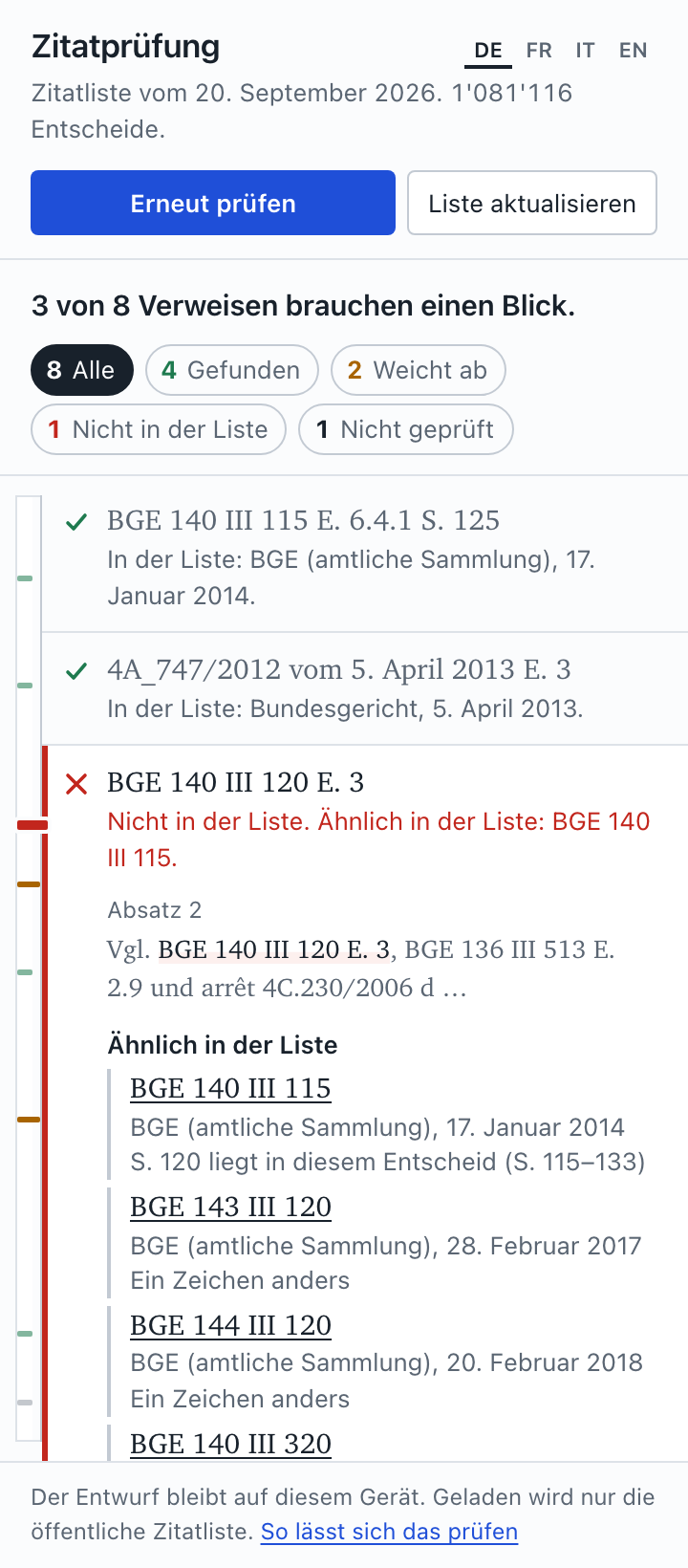
The pane after a check. German, French, Italian, English.
Install
Download one file and upload it in Word. No installer, no admin rights.
Download citecheck-manifest.xml
- Open Word. Tab Insert, button Add-ins (or Get Add-ins).
- Click My Add-ins, then Upload My Add-in (top right).
- Select
citecheck-manifest.xml, click Upload. - The pane opens. Next time: tab Review, button Zitate prüfen.
If there is no "Upload My Add-in", your organisation has blocked it. Your IT can add the same file in the Microsoft 365 admin center (Integrated apps, Upload custom apps) or put the add-in on the intranet: instructions for IT.
- Open the document in Word at office.com. Insert, Add-ins, More Add-ins.
- My Add-ins, Upload My Add-in, select the file.
- Quit Word.
- In the Finder: Go, Go to Folder…, paste
~/Library/Containers/com.microsoft.Word/Data/Documents/wef. Create the folderwefif it is missing. - Put the file in that folder.
- Start Word. Home, Add-ins, Developer Add-ins, citecheck.
Use
- Open the draft, press Entwurf prüfen. The first time, the list is downloaded (17 MB). After that only when a newer list exists; this is checked before every run.
- One line per citation: found, differs, not in the list, not checked. Click a line for details.
- Without Word: open the pane in a browser and drop the .docx on it. The file is read in the browser, not uploaded.
What is sent where
The add-in downloads files. It does not upload anything.
Web server of the add-in
jonashertner.github.io. Serves files only. A court can put the same files on its own server.
- the add-in (page, script, style)
- the list: court, date, number and Erwägung numbers of each decision. No text of any decision.
- sees: the pane was opened, the list was downloaded. Not the document.
Your computer
The add-in runs inside Word. It reads the document and compares the citations with the list. Everything happens here.
- the document
- the citations found in it
- the results, the comments
- a copy of the list, for the next run
Microsoft
Word loads the file office.js from appsforoffice.microsoft.com. Every Word add-in needs it.
- sees: an add-in was opened. Not which document.
Exception: when you click "open decision", your browser opens that decision's page on opencaselaw.ch. That is a normal link. opencaselaw.ch sees that the page was opened, not the document.
The add-in's page contains a rule for the browser (Content-Security-Policy) that allows connections to its own web server only. Word's built-in browser blocks every other connection. The code has one place that downloads, nothing that uploads. A test in the source code fails if this changes.
To check it yourself: open the pane with the browser's developer tools and watch the Network tab during a run. Details: SECURITY.md.
For the IT of a court
The add-in is a folder of files and one manifest. Copy the folder to an internal web server, put the list next to it, generate the manifest for that address, distribute it via the Microsoft 365 admin center. The computers then contact only the internal server and Microsoft. Instructions.
Feedback
This is a test version. If a result is wrong, send the citation as written and the message from the pane: GitHub or e-mail. Which courts and years are in the list: coverage.